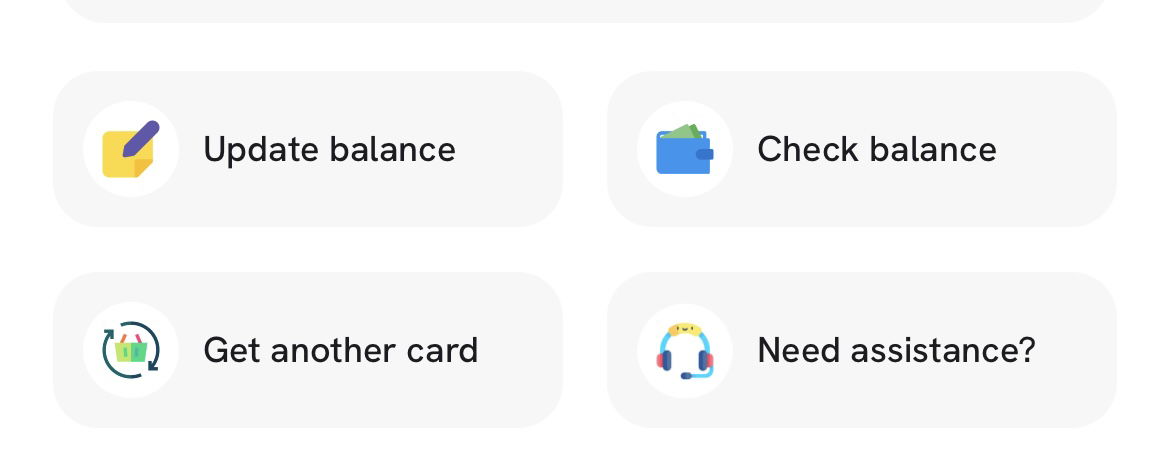

When you use part of your cashback balance (rather than the full amount), you'll need to manually update the remaining balance in the app.
This is because we're not automatically notified of partial balance usage - your transaction details remain private to you. 🔒
To update your balance:
Open the app and go to your cashback card.
Select 'Update balance' or 'Edit balance'.
Enter your remaining balance.
Save the changes and this will update automatically.
This will ensure your cashback card shows the correct amount available for future purchases.
You can check your cashback card balance directly in the tuck. app, which will redirect you to the relevant webpage. When checking a particular cashback card's balance, you can find this by scrolling down underneath the cashback card and pressing check balance.
If this isn't available, some brands offer an online balance checker. Simply search for the brand name followed by "balance checker" and enter your card details there.
If your balance looks incorrect, we recommend a manual check:
Note your last transaction amount.
Visit the retailer's own website or app to verify the remaining balance.
If there is a significant discrepancy after manually changing your balance, reach out to us.
Need help with your cashback card?
Head to Contact Support in the app Settings and we'll get you sorted. ⭐️
If you're having trouble accessing the app, you can fill out our Customer Support form and our team will help you as soon as possible.